Why CDS Fiori Elements Annotations Are the Real Work
If you've ever spent three hours wondering why your Fiori Elements List Report doesn't show a filter bar, or why the Object Page header looks completely bare, you already know the answer: annotations. The UI framework doesn't guess — it reads metadata you declare directly in your CDS views. Get the CDS Fiori Elements annotations right, and the UI assembles itself. Get them wrong, and you're staring at a blank screen with zero useful error messages.
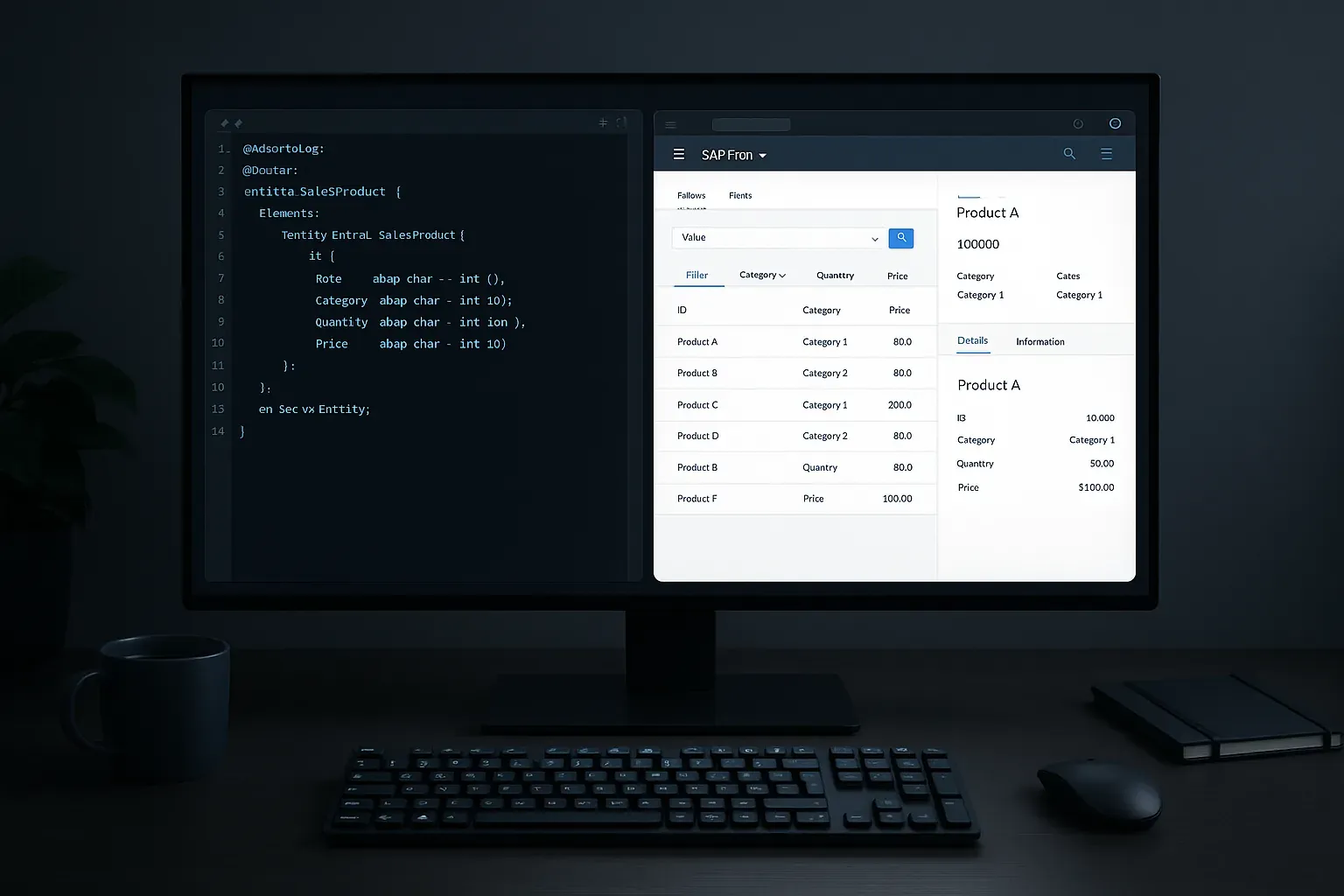
This article focuses on the annotations that matter most for two of the most common Fiori Elements floorplans: the List Report and the Object Page. We'll look at real, working code — not just annotation names copied from documentation.
The Layer Architecture Before We Write a Single Annotation
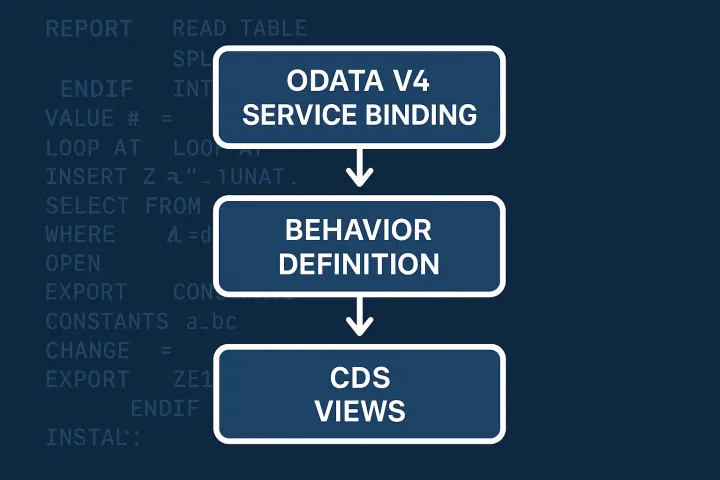
Before touching annotations, you need to understand the three-layer CDS model SAP expects:
- Interface/Basic View — pure data model, no UI annotations
- Projection/Consumption View — UI annotations live here, exposed via OData
- Metadata Extensions — optional, but keeps annotations separate from the view DDL
Most teams mix UI annotations directly into the consumption view. That's fine for smaller apps. For anything with more than two or three entity sets, metadata extensions keep the DDL readable. We'll cover both approaches here.
If you need a refresher on how consumption views connect to OData exposure, check out Part 7 of the CDS Views series on consumption views and Fiori integration.
CDS Fiori Elements Annotations: Starting with the UI Service Layer
The entry point for any Fiori Elements app is the @OData.publish: true or a proper @Metadata.allowExtensions: true marker, plus the root entity annotation for the floorplan:
@UI.headerInfo: {
  typeName: 'Sales Order',
  typeNamePlural: 'Sales Orders',
  title: { type: #STANDARD, value: 'SalesOrderID' },
  description: { type: #STANDARD, value: 'CustomerName' }
}

@UI.selectionFields: [
  { position: 10, qualifier: 'Default', element: 'SalesOrderID' },
  { position: 20, qualifier: 'Default', element: 'CustomerID' },
  { position: 30, qualifier: 'Default', element: 'OverallStatus' }
]

define root view entity ZC_SalesOrder
  as projection on ZI_SalesOrder
{
  ...
}
The @UI.headerInfo drives both the List Report column header area and the Object Page header title block. You need it even if the Object Page title seems obvious — without it, the header renders empty or falls back to the entity name, which is never what your users expect.
List Report Annotations You Cannot Skip
@UI.lineItem — Building the Table
The List Report table is entirely controlled by @UI.lineItem. Each column you want visible needs an entry. No annotation, no column. Simple as that.
@UI.lineItem: [
  { position: 10, importance: #HIGH, label: 'Order ID' },
  { position: 20, importance: #HIGH, label: 'Customer' },
  { position: 30, importance: #MEDIUM, label: 'Net Amount' },
  { position: 40, importance: #LOW,  label: 'Status',
    criticality: 'OverallStatusCriticality' }
]
SalesOrderID,

@UI.lineItem: [{ position: 10 }]
CustomerName,

@UI.lineItem: [{ position: 10 }]
NetAmount,

@UI.lineItem: [{ position: 10 }]
OverallStatus,

OverallStatusCriticality  -- calculated field, not shown as column itself
A few things worth noting from real-world experience:
importance: #HIGHkeeps columns visible on smaller screens; LOW ones collapse first- The
criticalityproperty references a field name (not a value) — that field should return 0, 1, 2, or 3 for neutral/negative/critical/positive coloring - Positions across fields don't compete — each field has its own annotation block, and position just defines sort order within that field's rendered column
@UI.selectionFields — The Filter Bar
The filter bar in a List Report only shows fields you explicitly annotate with @UI.selectionFields. Declare it at the view level (not field level):
@UI.selectionFields: [
  { position: 10, element: 'SalesOrderID' },
  { position: 20, element: 'CustomerID' },
  { position: 30, element: 'DeliveryStatus' }
]
If you want a search help (value help) on a filter field, you need a matching @Consumption.valueHelpDefinition on the projection field:
@Consumption.valueHelpDefinition: [{
  entity: {
    name: 'ZI_CustomerValueHelp',
    element: 'CustomerID'
  }
}]
CustomerID,
Without this, the filter field renders as a plain input. Users will type something wrong, get zero results, and blame the app. Add the value help.
Object Page Annotations
@UI.facets — Defining the Page Layout
The Object Page layout is entirely driven by @UI.facets. This is where most developers hit a wall, because facets nest inside each other and the syntax is unforgiving.
@UI.facets: [
  {
    id: 'GeneralInfo',
    purpose: #STANDARD,
    type: #COLLECTION_FACET,
    label: 'General Information',
    position: 10
  },
  {
    id: 'BasicData',
    purpose: #STANDARD,
    type: #IDENTIFICATION_REFERENCE,
    label: 'Basic Data',
    parentId: 'GeneralInfo',
    position: 10
  },
  {
    id: 'OrderItems',
    purpose: #STANDARD,
    type: #LINEITEM_REFERENCE,
    label: 'Order Items',
    targetQualifier: 'Items',
    targetElement: '_OrderItems',
    position: 20
  }
]
Key types you'll use most often:
#COLLECTION_FACET— a tab or section container; holds other facets as children viaparentId#IDENTIFICATION_REFERENCE— renders fields annotated with@UI.identification#FIELDGROUP_REFERENCE— renders a named group of fields from@UI.fieldGroup#LINEITEM_REFERENCE— renders a child entity as a table in the Object Page
@UI.identification and @UI.fieldGroup
Fields shown in the Object Page body need either @UI.identification or @UI.fieldGroup, depending on which facet type references them:
@UI.identification: [{ position: 10 }]
SalesOrderID,

@UI.identification: [{ position: 20 }]
CustomerName,

@UI.fieldGroup: [{ qualifier: 'Pricing', position: 10 }]
NetAmount,

@UI.fieldGroup: [{ qualifier: 'Pricing', position: 20 }]
TaxAmount,

@UI.fieldGroup: [{ qualifier: 'Pricing', position: 30 }]
GrossAmount,
Then in your facet definition, you reference the group:
{
  id: 'PricingDetails',
  type: #FIELDGROUP_REFERENCE,
  targetQualifier: 'Pricing',
  label: 'Pricing',
  parentId: 'GeneralInfo',
  position: 20
}
This is much cleaner than dumping everything into @UI.identification. Group related fields logically — customers notice when Net Amount, Tax, and Gross are separated across the page.
Header Facets for the Object Page Hero Section
The top section of the Object Page — the KPI-style header — uses @UI.headerFacets:
@UI.headerFacets: [
  {
    id: 'StatusHeader',
    type: #DATAPOINT_REFERENCE,
    targetQualifier: 'Status',
    position: 10
  },
  {
    id: 'AmountHeader',
    type: #DATAPOINT_REFERENCE,
    targetQualifier: 'NetAmount',
    position: 20
  }
]
And the matching data points:
@UI.dataPoint #Status: {
  title: 'Overall Status',
  criticality: 'OverallStatusCriticality'
}
OverallStatus,

@UI.dataPoint #NetAmount: {
  title: 'Net Amount',
  valueFormat: { scaleFactor: 1, numberOfFractionalDigits: 2 }
}
NetAmount,
Data points give you the compact KPI tiles in the header. Use them for the 3-4 numbers that matter most at a glance — status, total value, delivery date. Don't put 10 fields there; users will ignore them.
Using Metadata Extensions Instead of Inline Annotations
Once your view gets complex, inline annotations become noise. Metadata extensions let you put all UI annotations in a separate object while keeping the CDS view itself clean:
-- In the view, just mark it extensible:
@Metadata.allowExtensions: true
define root view entity ZC_SalesOrder ...

-- Then in a separate metadata extension:
annotate view ZC_SalesOrder with
@Metadata.layer: #CORE
{
  @UI.lineItem: [{ position: 10, importance: #HIGH }]
  SalesOrderID;

  @UI.lineItem: [{ position: 20 }]
  @UI.fieldGroup: [{ qualifier: 'Pricing', position: 10 }]
  NetAmount;
}
The @Metadata.layer matters — #CORE is for shipped SAP content, #CUSTOMER is for your custom apps. Use #CUSTOMER in your projects. This approach also makes partner and customer extensions possible without touching the base view, which is the right design for anything that will live in production for years.
For access control concerns on top of CDS views, the CDS Views row-level security with DCL roles article covers how DCL layers interact with consumption views.
Common Annotation Mistakes and How to Avoid Them
Missing @ObjectModel.semanticKey
Without a semantic key, navigation from the List Report to the Object Page may fail or produce ugly technical URLs. Annotate the key field:
@ObjectModel.semanticKey: ['SalesOrderID']
define root view entity ZC_SalesOrder ...
Forgetting @Search.searchable for the Search Field
The search bar in the List Report header only activates if you mark the view as searchable and annotate which fields participate:
@Search.searchable: true

@Search.defaultSearchElement: true
@Search.fuzzinessThreshold: 0.8
SalesOrderID,

@Search.defaultSearchElement: true
CustomerName,
Criticality Field Not in the Projection
If you reference criticality: 'OverallStatusCriticality' in an annotation, that field must exist in the projection — even if it's never shown as a column. Lots of developers forget this and wonder why the status color disappears.
Performance Note on Annotation-Heavy Views
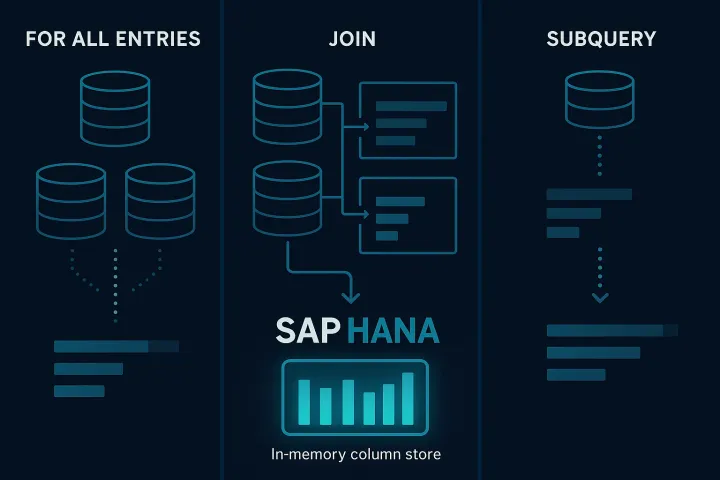
CDS annotations themselves don't affect HANA query performance — they're metadata. But the associations you expose for Object Page child tables do. Make sure associations used in #LINEITEM_REFERENCE facets are lazy (not eagerly joined in the base view). The CDS Views performance antipatterns article has the full breakdown on what kills query performance when associations are misused.
Also worth reviewing is Part 6 on associations and navigation properties — specifically how to declare associations in the projection view so OData expands work correctly for Object Page child sections.
Quick Reference: Annotation to Floorplan Mapping
| Annotation | List Report | Object Page |
|---|---|---|
| @UI.headerInfo | Column header | Page title block |
| @UI.selectionFields | Filter bar fields | — |
| @UI.lineItem | Table columns | Child table (via facet) |
| @UI.facets | — | Section/tab layout |
| @UI.fieldGroup | — | Field groups in sections |
| @UI.identification | — | Default field section |
| @UI.headerFacets | — | KPI header tiles |
| @UI.dataPoint | — | KPI values in header |
Final Thoughts
CDS Fiori Elements annotations are one of those areas where the documentation exists but the context is missing. You can read the annotation reference all day and still not know why your Object Page sections are empty. The patterns above come from real apps — sales order cockpits, purchase requisition approvals, goods movement monitors. They work.
Start with the consumption view, get the List Report table and filter bar working first, then layer in the Object Page facets. Don't try to build the complete annotation model upfront. Add facets and field groups incrementally as you test in the Fiori Launchpad preview — the feedback loop is fast once you know which annotation does what.
If you're building a full RAP-based app and need the behavior side to complement these UI annotations, the RAP senior architect's guide connects the behavior definition to the CDS consumption layer you've just annotated.