Why Row-Level Security Belongs in the Data Layer
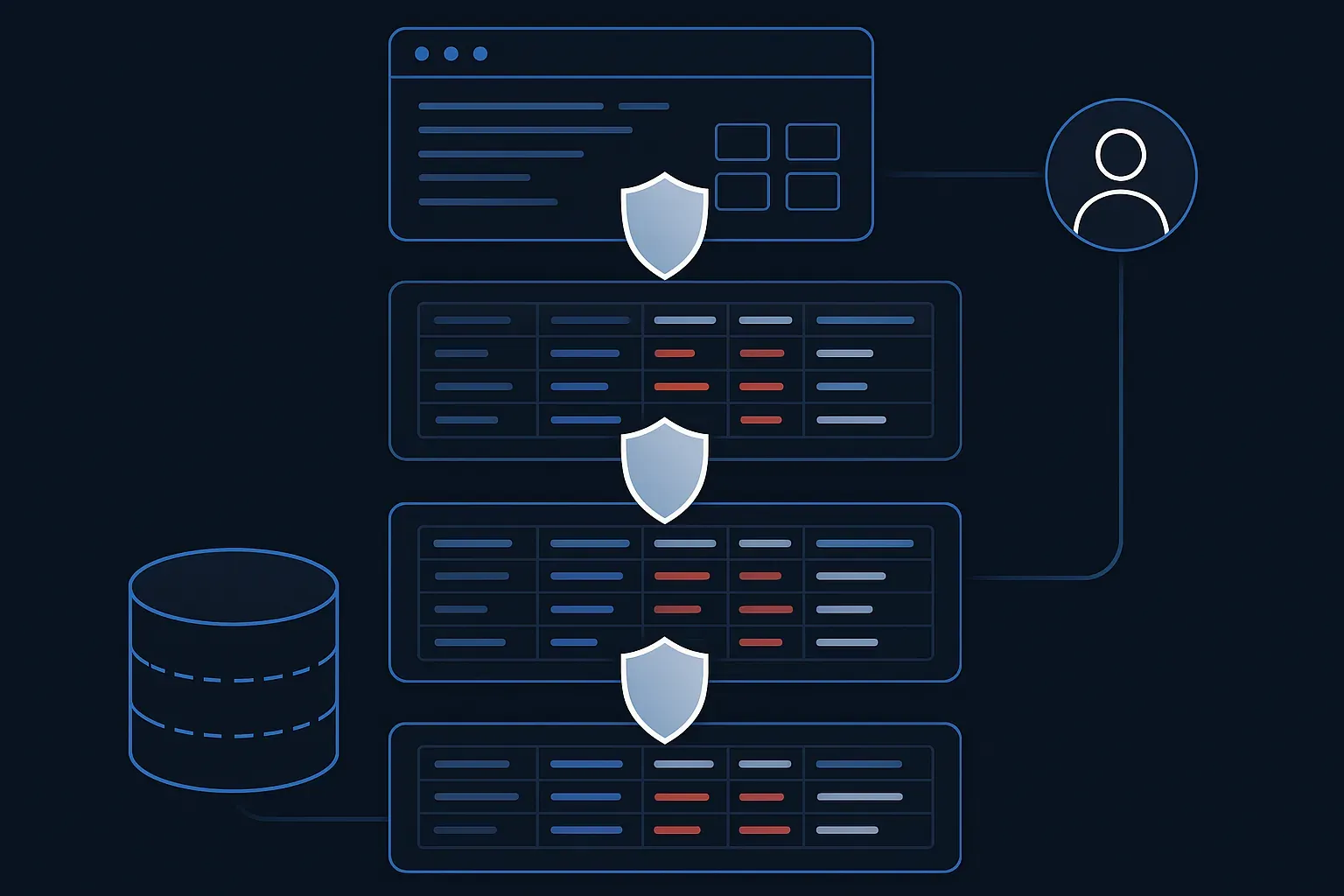
If you have spent time building CDS views for SAP S/4HANA, you have probably run into the question sooner or later: where should access control actually live? In a traditional ABAP report, authorization checks were scattered throughout the code — AUTHORITY-CHECK statements buried in loops, easy to miss, easy to bypass. CDS views offer something better: cds views row-level security enforced declaratively at the data layer, before a single byte reaches your application code.
This is Part 11 of the CDS Views series. If you missed the earlier foundation work on access control annotations and DCL basics, I'd recommend a quick read through Part 4: Advanced Annotations, Access Control and DCL before diving in here — this article builds directly on those concepts.
What DCL Actually Does Under the Hood
Data Control Language (DCL) in the CDS world is a separate artifact — a .dcl source object — that defines an access control policy for a specific CDS view. When you activate a DCL, the ABAP runtime automatically appends WHERE-clause conditions to any Open SQL query that reads from that view. Your application code does not need to do anything special. The filter just happens.
This is fundamentally different from object-level authorization (which controls whether a user can execute a transaction or call a function module). Row-level security controls which rows a user sees within an already-authorized data set. Think of it this way: object-level says "can this person open the sales order list?", row-level says "which sales orders can they actually read?"
The DCL Source Structure
A DCL source has a very specific syntax. Here is the skeleton you will use every time:
@EndUserText.label: 'Access control for Sales Orders'
@MappingRole: true
define role ZC_SALES_ORDER_ACCESS {
  grant select on ZC_SALES_ORDER
    where (SALES_ORG) = aspect pfcg_auth(V_VBAK_AAT, VKORG, ACTVT = '03');
}
Let me break down what each piece does:
@MappingRole: true— tells the runtime this DCL should be automatically applied when the view is accessed. Without this, the DCL exists but does nothing.grant select on ZC_SALES_ORDER— binds this policy to a specific CDS view by name.aspect pfcg_auth(...)— this is where the magic happens. It reads the user's actual PFCG role assignments and checks the authorization fields.
Understanding the pfcg_auth Aspect
The pfcg_auth aspect is your bridge between CDS row-level filtering and the classic SAP authorization concept system. The syntax is:
pfcg_auth(AuthObject, FieldInView, [AdditionalFixedConditions])
A realistic example for a purchasing scenario:
@EndUserText.label: 'Row security for Purchase Orders'
@MappingRole: true
define role ZC_PURCHASE_ORDER_ACCESS {
  grant select on ZC_PURCHASE_ORDER
    where (PURCHASING_ORG) = aspect pfcg_auth(M_BEST_BSA, EKORG, ACTVT = '03')
      and (DOC_TYPE)       = aspect pfcg_auth(M_BEST_BST, BSTYP, ACTVT = '03');
}
What this enforces: a user can only read purchase order rows where both the purchasing organization AND the document type match what their PFCG roles permit with activity 03 (display). If either condition fails, the row is filtered out silently — no dump, no error, just an empty result set for that row.
Combining Multiple Conditions
You can combine conditions with and (both must be true) or or (either is sufficient). Here is a pattern I use often for scenarios where certain "super users" should see everything:
define role ZC_SALES_ORDER_ACCESS {
  grant select on ZC_SALES_ORDER
    where (SALES_ORG) = aspect pfcg_auth(V_VBAK_AAT, VKORG, ACTVT = '03')
       or aspect user_name = 'BATCH_JOB_USR';
}
Be careful with or and user name exceptions — I've seen this pattern abused to create permanent backdoors. Use it intentionally and document it.
Inheritance: How Child Views Pick Up Parent Policies
This is the part that trips people up most often. When CDS view B is built on top of CDS view A, and view A has a DCL, the access control is inherited automatically. View B does not need its own DCL — it already gets the filtered rows from A.
But here is the subtlety: if you add a DCL to view B as well, both policies apply simultaneously. The user must satisfy both. This is correct behavior for layered security, but it can cause confusing empty result sets if you are not tracking which DCLs are active in your view hierarchy.
My recommendation: keep a simple diagram of your view stack and mark which layer owns the DCL. As you build consumption views for Fiori apps (covered in Part 7 on Consumption Views and OData), this discipline prevents hard-to-debug access issues in production.
Practical Example: Multi-Company Code Scenario
Let's build a realistic end-to-end example. You have a financial posting view that must restrict rows by company code based on the user's authorization profile.
Step 1: The CDS View
@AbapCatalog.sqlViewName: 'ZV_FI_POSTING'
@AbapCatalog.compiler.compareFilter: true
@AccessControl.authorizationCheck: #CHECK
@EndUserText.label: 'FI Posting View'
define view ZC_FI_POSTING
  as select from bkpf
{
  key belnr   as AccountingDocument,
  key bukrs   as CompanyCode,
  key gjahr   as FiscalYear,
      blart   as DocumentType,
      budat   as PostingDate,
      usnam   as CreatedByUser
}
Note the annotation @AccessControl.authorizationCheck: #CHECK. This is critical — it tells the runtime that this view has access control and it should be enforced. If you set it to #NOT_REQUIRED, the DCL is ignored entirely. I've seen this mistake cause security incidents in production systems.
Step 2: The DCL
@EndUserText.label: 'Access control for FI Postings'
@MappingRole: true
define role ZC_FI_POSTING_ACCESS {
  grant select on ZC_FI_POSTING
    where (CompanyCode) = aspect pfcg_auth(F_BKPF_BUK, BUKRS, ACTVT = '03')
      and (DocumentType) = aspect pfcg_auth(F_BKPF_BLA, BLART, ACTVT = '03');
}
Notice I'm using the CDS field alias (CompanyCode, DocumentType) not the underlying table field names (BUKRS, BLART). The DCL works with the view's published field names.
Step 3: Testing the Policy
Before you deploy, test the DCL with multiple user contexts. The easiest approach is using transaction SUIM to understand what authorization values a test user holds, then running an Open SQL query against your view with that user context.
You can also use the CDS access control test in ADT (ABAP Development Tools in Eclipse). Right-click your DCL source → Run As → Access Control Test. It shows you exactly which rows would be filtered for a given user — invaluable during development.
For automated testing of the underlying view logic (separate from the access control layer), the test isolation patterns described in Part 9: Testing CDS Views with ABAP Unit Tests still apply — you can bypass DCL in unit tests using the WITH PRIVILEGED ACCESS addition in Open SQL.
The Literal Condition: When You Don't Need PFCG
Not every row-level restriction needs to go through the PFCG authorization system. Sometimes you want to filter based on session context — the current user, current client, or a custom condition. CDS DCL supports literal conditions for this:
define role ZC_MY_DOCUMENTS_ACCESS {
  grant select on ZC_MY_DOCUMENTS
    where (CreatedByUser) = aspect user_name;
}
This filters the view so each user only sees rows they created. Simple, effective, and no PFCG object needed. The available session aspects are:
aspect user_name— the current SY-UNAMEaspect client— the current SY-MANDT (usually not needed since CDS is already client-dependent)aspect pfcg_auth(...)— as shown above
Common Mistakes That Will Cost You in Production
Mistake 1: Forgetting @AccessControl.authorizationCheck
If your view has #NOT_REQUIRED or is missing the annotation, the DCL does nothing. Always explicitly set #CHECK on views that have a corresponding DCL.
Mistake 2: DCL on the Wrong Layer
Putting a DCL on a basic interface view that is reused across many consumption views can have unintended consequences — especially if some consumption views are internal APIs used by background jobs that need full access. Plan your DCL placement carefully. Basic views: put DCL here if you want universal enforcement. Consumption views: put DCL here for UI-specific restrictions.
Mistake 3: Using Field Names Instead of Aliases
DCL uses the published aliases of a CDS view, not the underlying database field names. If your view maps bukrs as CompanyCode, your DCL must reference CompanyCode. Using bukrs will cause an activation error.
Mistake 4: No Testing with Restricted Users
I have seen DCLs that looked correct in development but silently returned empty result sets for all non-basis users in production because the PFCG objects were never properly maintained. Always test your DCL with a user that has a realistic (restricted) role assignment, not just with your full-authorization developer account.
DCL and RAP: What Changes
If you are building a RAP business object on top of a CDS view with a DCL, the access control is still enforced at the read level — the DCL filters what the RAP framework can retrieve. For write operations, you still need explicit authorization checks in your behavior implementation. DCL is read-path security; it does not protect CREATE, UPDATE, or DELETE. This is a common misconception when teams first migrate to RAP. See RAP Behavior Definitions: Managed vs Unmanaged Scenarios for how the behavior layer handles write-side authorization.
Performance Considerations for Row-Level Filters
Adding DCL conditions translates into additional WHERE clause predicates on every query against that view. On HANA, this is generally efficient because the column store handles selective filters well. However, watch out for:
- Large authorization profiles — if a user has 500 company codes in their authorization profile, the generated IN-list can get long. HANA handles this, but it's worth monitoring in SQL trace (ST05).
- Wildcard authorizations (*) — when a user has a wildcard value for an authorization field, HANA can optimize this to no filter at all. This is ideal for "see everything" admin users.
- Complex multi-field conditions — each
andcondition in your DCL adds a join-like condition. Keep the DCL focused on the minimum necessary fields for the security requirement.
The optimization principles from Part 8: CDS Views Performance Optimization apply here too — always measure the impact of your DCL with realistic data volumes before go-live.
Wrapping Up
CDS views row-level security with DCL and CDS roles gives you something classic ABAP authorization checks never could: consistent, declarative, layer-agnostic data filtering that applies regardless of whether the view is called from a Fiori UI, a background job, an OData service, or an embedded analytics query. You define the rule once, and it holds everywhere.
The key discipline is treating your DCL artifacts with the same seriousness as your view definitions — version control them, test them with realistic user profiles, and document which layer in your view hierarchy owns which policy. Get that right, and you have a security foundation that scales without maintenance overhead as your data model grows.
Next up in the series, we will look at CDS view extensions and how to add fields and associations to delivered SAP views without modification — another area where the right patterns save you significant upgrade pain.